
Swipellio Free vs Pro: What You Can Actually Do Without Paying
The basic review loop is free without a swipe limit. Pro adds two kinds of help: finding the part of the library to review and making files smaller when you want to keep them.
Free with no daily swipe cap
Everything, Photos, Videos and Screenshots are free basic modes. All sort orders, the in-app Trash Bin, double-tap undo and hold-to-zoom are included. There are no ads, cooldown timers or account requirements. You can review a whole library manually without paying.
Free allowances for specialized review
Clutter Scanner, Papers and Pets each offer 20 free items. Similars offers 5 free packs of near-identical shots. These modes narrow the queue so you can review a particular kind of material. Continuing beyond their allowances requires Pro; it does not make the basic modes paid.
What does not use another allowance
Undoing a swipe, restoring from the Bin or re-scanning does not consume the allowance again. Allowances survive reinstall. You do not need to avoid correcting a mistake in order to protect a trial item.
Tools that require Pro
Quick Cleanup and video compression are Pro-only tools. Quick Cleanup’s scan and category summary can be viewed without Pro, but entering the category tools requires it. Those tools make supported files smaller or reduce selected categories; the free swipe loop does not perform those transformations.
Subscriptions and lifetime purchase
Pro is offered as a subscription or a one-time lifetime purchase. Current plans and local prices are shown in the App Store and in the purchase flow. No specific price or duration of a launch offer is promised here.
Choose by the job you want to finish
For manually checking screenshots or unwanted photos, start with a free basic mode. For grouping near-identical shots, try the Similars allowance. For keeping a smaller video or converting supported media, consider the Pro tool and review its tradeoff before using it.
More guides
- Photo Cleaner Without a Subscription: What "Free" Really Means
- How to Free Up iPhone Space with Quick Cleanup
Check before deleting
A left swipe only moves the photo into the in-app Trash Bin. You can restore it until you empty the Bin; a double tap undoes the last swipe. After deleting from your library, check Recently Deleted in Photos too. Permanently deleting from there cannot be undone.
With iCloud Photos enabled, deleting also syncs to other devices on the same account. Keep a separate copy of important memories before permanently removing them.
Apple’s guide to deleting and recovering photos
Try Swipellio on iPhone
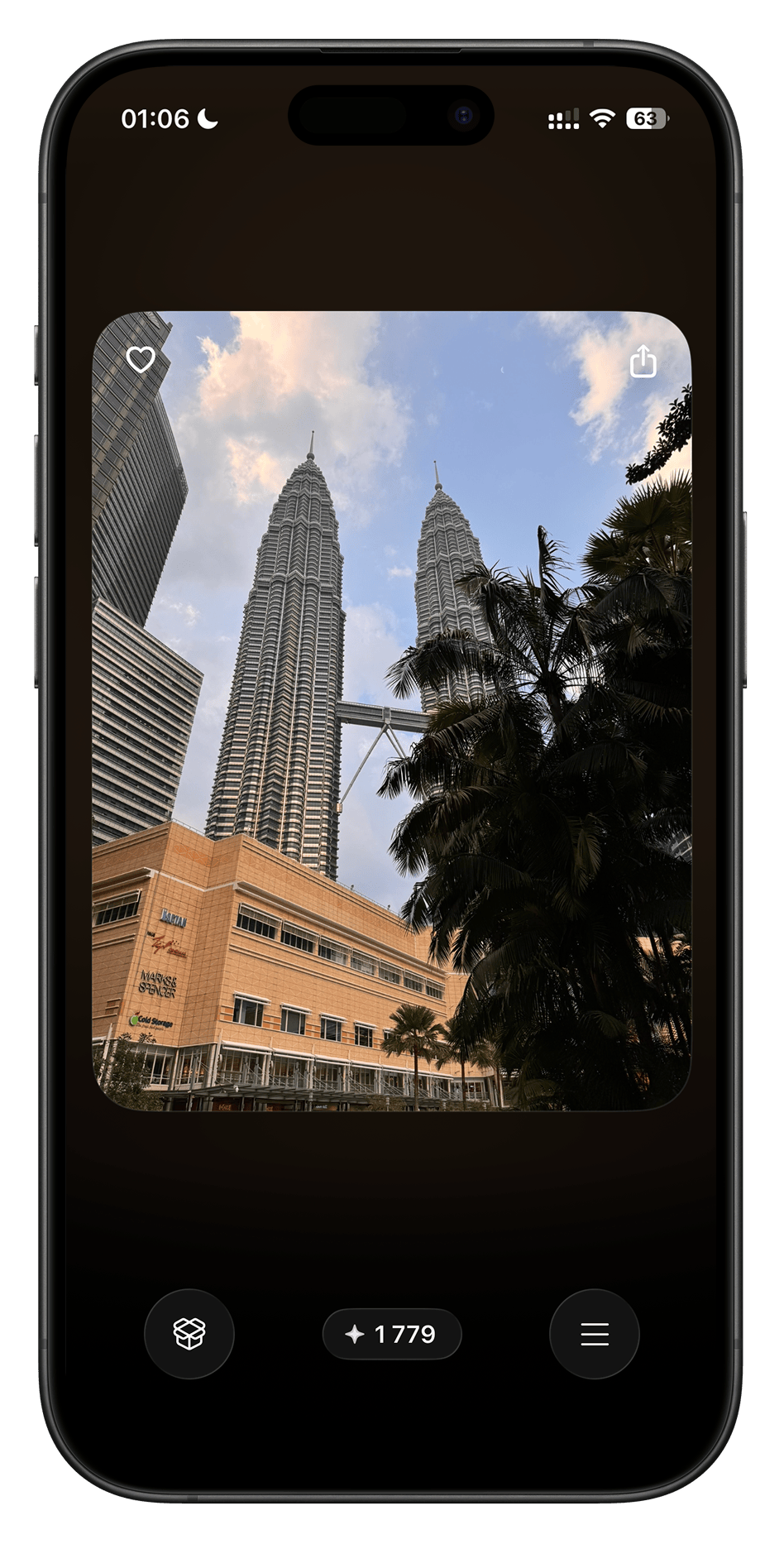
Everything, Photos, Videos and Screenshots are free basic modes, with no daily swipe cap. All sort orders, the Trash Bin and double-tap undo are included. No ads, cooldown timers or account.
More guides

How to Delete Similar Photos on iPhone
Compare near-identical shots and choose which ones to keep. Review them manually in Photos or in Similars packs before deleting.

How to Delete Thousands of Photos on iPhone
Choose between a checked batch and reviewing photos one at a time before clearing a large iPhone library.
How to Delete Screenshots on iPhone
Find screenshots in Photos or review them in Swipellio’s free Screenshots mode before removing them.
Deleted Photos Still Taking Up Storage on iPhone?
Check Swipellio’s Bin, Recently Deleted and the iPhone storage display when removing photos does not seem to free space.

How to Free Up Storage on iPhone Without Deleting Apps
Find out what is using your iPhone storage and get space back in the right order, without deleting the apps and photos you want to keep.

How to Delete Duplicate Photos on iPhone
Merge exact copies with the Photos Duplicates album, then review the near-duplicates it ignores. Three methods, and which one fits which problem.

How to Free Up iCloud Storage: What to Delete and What to Keep
iCloud storage full? Review backups, photos, iCloud Drive and Messages to free up space, without deleting photos from all your devices by accident.