How to Delete Duplicate Photos on iPhone

Short answer
Open Photos → Utilities → Duplicates, tap Select, then Merge. This handles exact copies automatically. For near-duplicates the album ignores — burst frames, five shots of the same sunset — you still need to review them yourself, either by hand in the Photos grid or with a swipe-based cleanup app. Finish by emptying Recently Deleted, or the space won't come back for 30 days.
Duplicates accumulate quietly. You save the same image from a chat twice, an app writes its own copy on export, you take four versions of a photo to pick the best one and never delete the other three. None of it feels like a problem until the storage warning shows up.
There are three practical ways to deal with it on an iPhone. They solve different parts of the problem, and it's worth knowing which is which before you start tapping.
Method 1: Use the built-in Duplicates album
iOS includes a duplicate detector in the Photos app. It scans your library on device and groups items it recognizes as copies of each other.
- Open the Photos app.
- Scroll down to the Utilities section and tap Duplicates. If you don't see it, your library has no detected duplicates, or the scan hasn't finished yet.
- Review a set and tap Merge next to it.
- To batch it, tap Select in the corner, choose several sets — or Select All — and tap Merge.
- Confirm. The merged copies move to Recently Deleted.
Merging is safe: iOS keeps the highest-quality version of each set and folds the metadata — captions, keywords, favorite status — into the one it keeps. You aren't choosing between a good copy and a bad one.
Why the Duplicates album is often nearly empty
This is the part that surprises people. The album is deliberately conservative — it only groups photos it's confident are the same image. It will not catch:
- Burst frames and rapid-fire shots. Ten frames of the same jump are ten different photos, not duplicates.
- Near-identical retakes. Three attempts at the same group photo where someone blinked.
- Screenshots of the same screen taken at different moments.
- Re-saved or re-compressed copies that differ enough at the pixel level after passing through a messaging app.
In most camera rolls, those categories are far bigger than the true duplicates. Which is why the album can report a handful of sets while several gigabytes of redundant photos sit untouched.
Method 2: Review manually in the Photos grid
For near-duplicates, human judgment is still the only reliable filter — you're the only one who knows which of the four shots is the keeper.
- In Photos, open your library and pinch to zoom out to a denser grid. Similar shots sit next to each other chronologically, so clusters are easy to spot.
- Tap Select, then drag your finger across a run of thumbnails to select many at once instead of tapping each one.
- Tap the trash icon.
This works, and it costs nothing. The drawback is stamina: on a library of 15,000 photos, scrolling a grid and second-guessing each cluster is a long evening, and most people abandon it partway through.
Method 3: Swipe through them one at a time
The third approach turns the review into single decisions instead of a grid full of them. You see one photo at a time, full size, and swipe — keep or delete — the way you'd triage anything else.
It sounds slower, and per photo it is. In practice it's usually faster overall, because the hard part of manual cleanup isn't tapping, it's deciding. A full-screen photo with two options is a much easier decision than a grid of forty thumbnails where you're trying to hold "which of these is the good one" in your head.
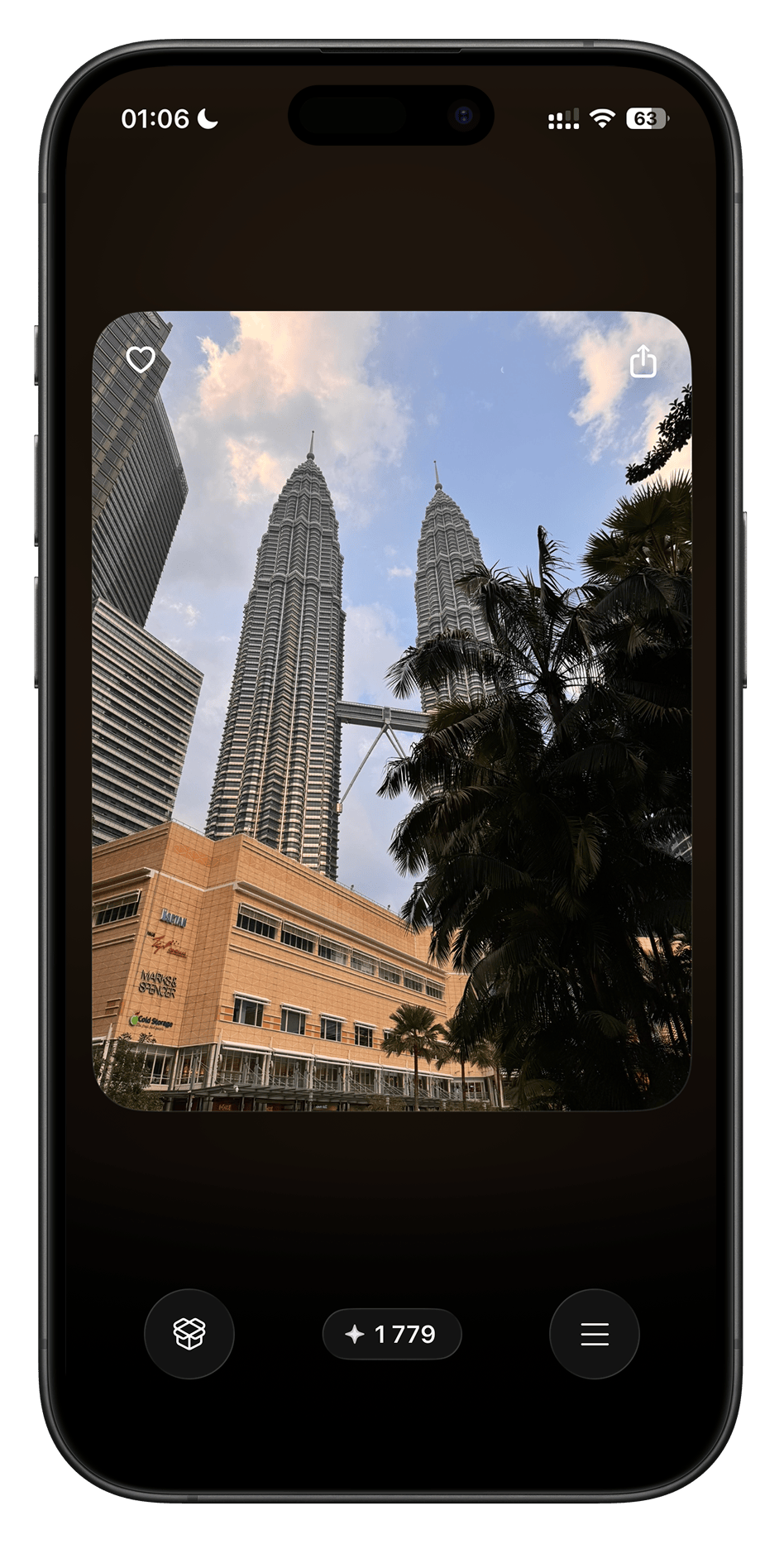
Swipellio is built around this loop. Swiping left doesn't delete anything — it moves the photo to an in-app Trash Bin where it stays until you deliberately empty it, and a double tap undoes the last swipe instantly. Everything runs on the device.
One distinction worth being precise about: Swipellio does not hunt for byte-identical duplicates. Its Similars mode handles the other problem — near-identical shots of the same moment — by grouping them into packs so you compare them side by side. For true duplicates, the Photos app's own Duplicates album is the right tool, and it's free. See similar photos vs duplicates for why these are two different jobs.
Which method should you use?
| Method | Best for | Limitation |
|---|---|---|
| Duplicates album | Exact copies, zero effort | Misses near-duplicates entirely |
| Manual grid review | Small libraries, full control | Exhausting past a few thousand photos |
| Swipe-based app | Large, messy camera rolls | Still requires your judgment, one photo at a time |
The practical answer is usually all three, in that order: let the Duplicates album take the free wins, then swipe through what's left, and fall back to the grid for anything specific you're hunting down.
Don't skip this: empty Recently Deleted
Deleting a photo on iPhone doesn't immediately free storage. It moves to Recently Deleted, where it stays for 30 days as a safety net — and keeps occupying exactly as much space as before.
To reclaim it now: open Photos, go to Utilities → Recently Deleted, authenticate with Face ID or Touch ID, then tap Select → Delete All.
Check the album carefully first. After this step the photos are gone for good.
What about iCloud?
If iCloud Photos is on, your library is synced rather than backed up. Deleting a photo on your iPhone deletes it everywhere — iPad, Mac, iCloud.com — for every device signed in to the same Apple Account. That's the intended behavior, but it catches people out who assume iCloud keeps a spare copy.
If you want an archive before a big cleanup, copy the library to a computer or an external drive first. Turning off iCloud Photos is not an archiving strategy.
Key takeaways
- The Duplicates album (Photos → Utilities → Duplicates) removes exact copies safely and keeps the best version.
- It ignores near-duplicates — bursts, retakes, re-saved images — which are usually the bulk of the waste.
- Drag-to-select in the Photos grid is much faster than tapping each thumbnail.
- Nothing is freed until you empty Recently Deleted; otherwise it takes 30 days.
- With iCloud Photos on, deletions sync to every device on your Apple Account.
Frequently asked questions
Why doesn't the Duplicates album show all my duplicates?
It only groups photos it considers exact or near-exact copies. Burst frames, shots taken seconds apart, and images re-compressed by another app are treated as distinct photos, so they never appear there.
Does merging duplicates lose quality?
No. Merging keeps the highest quality version of the set and combines relevant metadata such as captions, keywords and favorites into it. The remaining copies move to Recently Deleted.
Does deleting duplicates free up storage right away?
Not immediately. Deleted photos stay in the Recently Deleted album for 30 days and still occupy storage. Empty that album to reclaim the space right away.
Will deleting duplicates on my iPhone delete them from iCloud?
Yes, if iCloud Photos is enabled. The library is synced, so the deletion propagates to every device signed in to the same Apple Account.
Can I recover a photo I deleted by mistake?
Yes, as long as you haven't emptied Recently Deleted. Open that album, select the photo and tap Recover. After 30 days, or after a manual Delete All, it's unrecoverable.
Clean up the rest by swiping
Swipellio hands you one photo at a time. Swipe left to delete, right to keep. Nothing leaves your library until you empty the Trash Bin yourself.