
How to Delete Similar Photos on iPhone
Several pictures of the same pose are not necessarily copies. Start by choosing what to keep. You can compare the shots in Photos or use an app that brings similar pictures together for review.
Similar shots and identical files are different problems
Photos of the same moment can differ in expression, sharpness and framing. Swipellio’s Similars groups near-identical shots; it does not promise to find byte-identical files. For duplicates detected by Apple, check the Duplicates collection in Photos. Finding few duplicate sets does not tell you how many retakes you have.
Compare a series manually in Photos
- Open a day or event in your photo library and work through one series at a time.
- Open the pictures and zoom in on eyes, focus and framing. Keep more than one when the shots tell different stories.
- Use Select to mark only the unwanted pictures. Before deleting, check that your favourite is outside the selection.
Review a pack with Similars
Similars brings near-identical shots together. Autoselect can suggest what to keep based on open eyes, expression, sharpness, exposure and framing. You see its choices before anything moves, so check that your own favourites are kept. A pack does not have to end with exactly one surviving image.
Check before deleting
A left swipe only moves the photo into the in-app Trash Bin. You can restore it until you empty the Bin; a double tap undoes the last swipe. After deleting from your library, check Recently Deleted in Photos too. Permanently deleting from there cannot be undone.
With iCloud Photos enabled, deleting also syncs to other devices on the same account. Keep a separate copy of important memories before permanently removing them.
Apple’s guide to deleting and recovering photos
Try Swipellio on iPhone
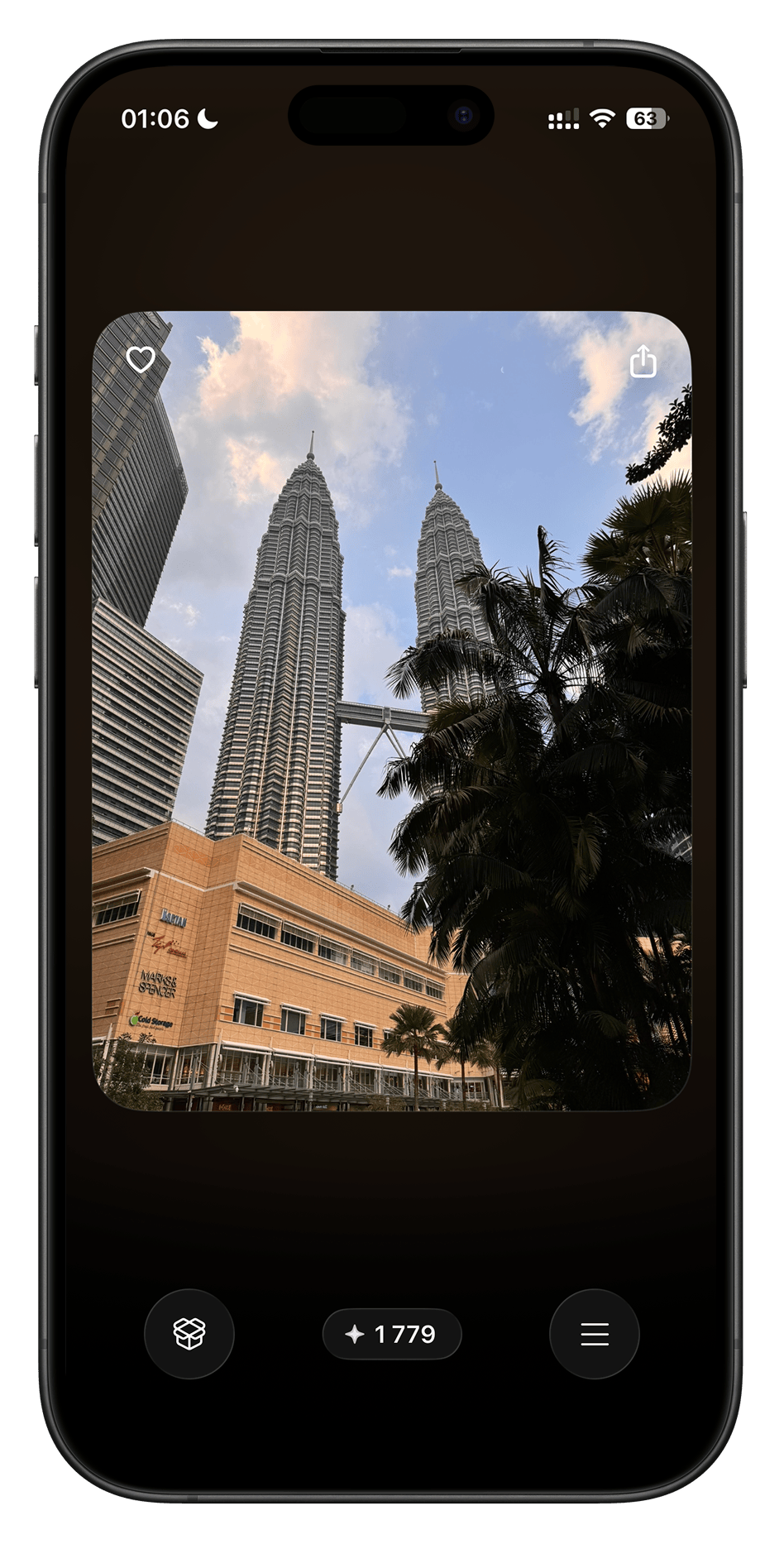
You can try 5 packs of similar photos for free. Continuing with Similars requires Pro; basic modes remain free with no swipe limit.
More guides

How to Delete Thousands of Photos on iPhone
Choose between a checked batch and reviewing photos one at a time before clearing a large iPhone library.
How to Delete Screenshots on iPhone
Find screenshots in Photos or review them in Swipellio’s free Screenshots mode before removing them.
Deleted Photos Still Taking Up Storage on iPhone?
Check Swipellio’s Bin, Recently Deleted and the iPhone storage display when removing photos does not seem to free space.

How to Free Up Storage on iPhone Without Deleting Apps
Find out what is using your iPhone storage and get space back in the right order, without deleting the apps and photos you want to keep.

How to Delete Duplicate Photos on iPhone
Merge exact copies with the Photos Duplicates album, then review the near-duplicates it ignores. Three methods, and which one fits which problem.
How to Free Up iCloud Storage: What to Delete and What to Keep
iCloud storage full? Review backups, photos, iCloud Drive and Messages to free up space, without deleting photos from all your devices by accident.