
How to Find Unwanted Photos on iPhone

Blurry shots, accidental photos and pictures you no longer need can get buried among your favorites. Swipellio’s Clutter Scanner brings likely cleanup candidates into one queue, so you can spend your attention on deciding what stays.
Start with the kind of photos you want to review
For blurry shots, very dark photos, overexposed images and everyday utility pictures, choose Clutter Scanner. For receipts and documents, choose Papers; for photos of cats and dogs, choose Pets. Each mode brings a different part of the camera roll into focus.
Review the suggestions in Clutter Scanner
Open the mode menu and choose Clutter. Review each suggested photo, swipe right to keep it or left to put it in Swipellio’s Bin. A suggestion is a starting point: a blurry picture can still be a memory you want. Nothing is deleted from the photo library until you empty the Bin.
Use Similars for repeated shots
When several frames show almost the same moment, switch to Similars. It groups near-identical shots into packs so you can compare them together. Autoselect suggests which frames to keep, and you can review its choices before anything moves.
Try the focused modes, or review everything for free
Clutter Scanner, Papers and Pets each include 20 free items; Similars includes 5 free packs. Pro continues those focused modes. The basic Everything, Photos, Videos and Screenshots modes have unlimited swipes, with no ads, account, daily cap or cooldown timer.
Choose a review order that suits your goal
Use Largest in the basic modes to start with files taking the most space, Older to revisit earlier memories, or Shuffle for a mixed selection. If you want to keep a video while reducing its file size, video compression is available with Pro.
Finish by checking the Bin
Look through the Bin before emptying it. Restore anything you want to keep, then confirm removal of the rest. With iCloud Photos enabled, deleting from the library can also remove the items from your other synced devices.
More guides
- How to Find and Delete Blurry Photos on iPhone
- How to Delete Similar Photos on iPhone
- How to Free Up iPhone Space with Quick Cleanup
Check before deleting
A left swipe only moves the photo into the in-app Trash Bin. You can restore it until you empty the Bin; a double tap undoes the last swipe. After deleting from your library, check Recently Deleted in Photos too. Permanently deleting from there cannot be undone.
With iCloud Photos enabled, deleting also syncs to other devices on the same account. Keep a separate copy of important memories before permanently removing them.
Apple’s guide to deleting and recovering photos
Try Swipellio on iPhone
Everything, Photos, Videos and Screenshots are free basic modes, with no daily swipe cap. All sort orders, the Trash Bin and double-tap undo are included. No ads, cooldown timers or account.
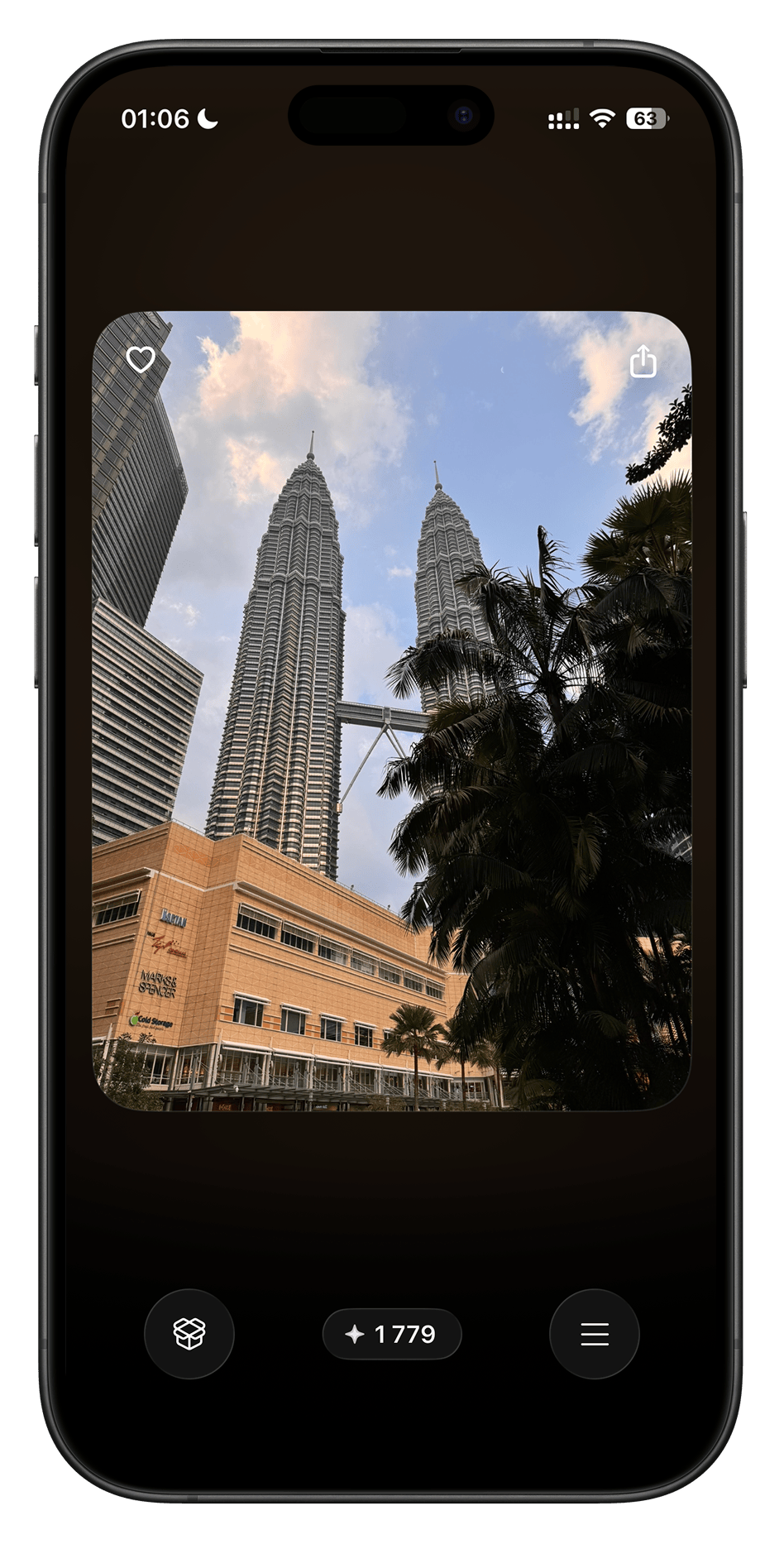
More guides

How to Delete Similar Photos on iPhone
Compare near-identical shots and choose which ones to keep. Review them manually in Photos or in Similars packs before deleting.

How to Delete Thousands of Photos on iPhone
Choose between a checked batch and reviewing photos one at a time before clearing a large iPhone library.
How to Delete Screenshots on iPhone
Find screenshots in Photos or review them in Swipellio’s free Screenshots mode before removing them.
Deleted Photos Still Taking Up Storage on iPhone?
Check Swipellio’s Bin, Recently Deleted and the iPhone storage display when removing photos does not seem to free space.

How to Free Up Storage on iPhone Without Deleting Apps
Find out what is using your iPhone storage and get space back in the right order, without deleting the apps and photos you want to keep.

How to Delete Duplicate Photos on iPhone
Merge exact copies with the Photos Duplicates album, then review the near-duplicates it ignores. Three methods, and which one fits which problem.

How to Free Up iCloud Storage: What to Delete and What to Keep
iCloud storage full? Review backups, photos, iCloud Drive and Messages to free up space, without deleting photos from all your devices by accident.